In the ever-evolving digital world, YouTube live streaming has become one of the most powerful tools for creators, businesses, and influencers to connect with their audience in real time. Whether you’re a gaming enthusiast, a business professional, or an educator, mastering YouTube live streaming can elevate your brand visibility and audience engagement to new heights. This YouTube live streaming guide 2025 is designed to provide you with step-by-step instructions, insider tips, and expert strategies to ensure your streams are professional, smooth, and captivating.
Why YouTube Live Streaming Matters in 2025
Live streaming is no longer a niche activity—it’s a mainstream communication channel that brings numerous benefits:
- Real-time audience engagement: Respond to comments instantly and build a community.
- Boosted discoverability: YouTube prioritizes live content, helping you reach new audiences.
- Monetization opportunities: Enable Super Chat, memberships, and brand partnerships.
- Enhanced credibility: Live interactions show authenticity and transparency.
According to recent statistics, YouTube Live has seen a 35% increase in daily active viewers over the last year, signaling a growing trend in live content consumption.
Setting Up Your YouTube Live Stream
Before hitting the “Go Live” button, proper preparation is crucial. Here’s what you need to know:
Equipment Checklist for a Professional Stream
EquipmentPurposeRecommended SpecsCameraCapture high-quality video1080p or 4K webcam/DSLRMicrophoneClear audio for audienceUSB/XLR condenser micLightingProfessional-looking streamSoftbox or ring lightStable InternetPrevent buffering5 Mbps upload speed minimumStreaming SoftwareControl and enhance streamOBS Studio, Streamlabs, or vMix
Pro Tip: Even mobile streaming can be effective, but for a professional look in 2025, invest in at least a mid-range camera and mic setup.
YouTube Account Requirements
To live stream on YouTube in 2025, ensure:
- Your account is verified.
- No live stream restrictions in the last 90 days.
- You’ve enabled live streaming under YouTube Studio.
Choosing the Right Streaming Method
YouTube offers three primary streaming options:
- Webcam Streaming: Quick and simple, ideal for vlogs or personal updates.
- Mobile Streaming: Best for events, live travel, or on-the-go updates.
- Encoder Streaming: For professional-quality streams with multiple cameras, graphics, and overlays.
Planning Your Live Stream Content
Content planning is key to attracting and retaining viewers. Follow these steps:
Define Your Goal
- Entertainment: Gaming streams, music sessions.
- Education: Tutorials, webinars, online courses.
- Business: Product launches, Q&A sessions, brand promotions.
Create an Engaging Stream Schedule
Consistency matters:
DayTimeContent TypeMonday6 PMGaming livestreamWednesday5 PMQ&A / tutorialFriday7 PMProduct showcase / interview
Pro Tip: Promote your schedule on social media to build anticipation.
Optimize Titles, Descriptions, and Tags
SEO-friendly titles and descriptions increase discoverability. Include:
- Primary keyword: YouTube live streaming guide 2025
- Secondary keywords: “how to go live on YouTube,” “YouTube live tips,” “live streaming setup”
- Timestamped chapters for longer streams
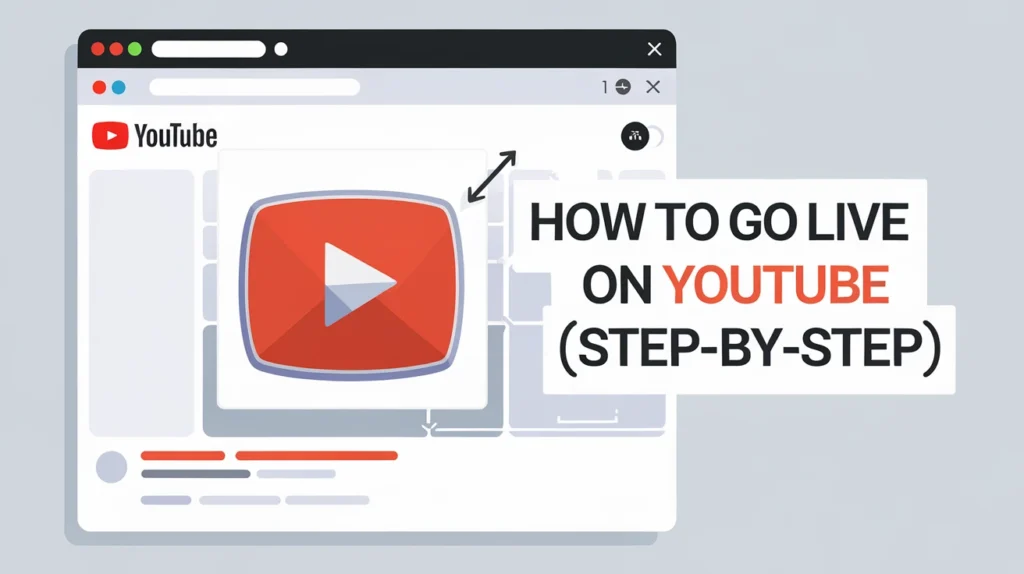
How to Go Live on YouTube (Step-by-Step)
Access YouTube Studio
- Go to YouTube Studio
- Click the Create button → Go Live
Set Up Your Stream
- Choose Stream or Webcam
- Add title, description, and tags
- Choose public, private, or unlisted visibility
Configure Your Settings
- Enable Monetization if eligible
- Turn on Live Chat to engage with viewers
- Enable DVR to let viewers rewind
Stream Quality Settings
- Resolution: 1080p for standard streams, 4K for premium quality
- Frame rate: 30–60 fps for smooth video
- Bitrate: 4,500–9,000 Kbps for HD
Go Live
- Click Go Live
- Monitor the stream health dashboard for connection stability
- Interact with viewers in real time
Enhancing Your YouTube Live Streaming Experience
Use Overlays and Graphics
Professional overlays enhance your stream:
- Logo watermark
- Subscriber alerts
- On-screen text for promotions or links
Engage Your Audience
- Ask questions and encourage comments
- Respond to chat messages
- Conduct polls or live quizzes
Collaborate with Other Creators
Co-streaming with influencers can expand your reach and attract new subscribers.
Record and Repurpose Streams
- Save live streams for YouTube uploads
- Edit highlights for social media clips
- Use as content for email newsletters or blogs
Common Mistakes to Avoid in 2025
MistakeSolutionPoor InternetEnsure at least 5 Mbps upload speed; consider wired connectionIgnoring Audio QualityInvest in a quality microphone; reduce background noiseNo PromotionShare stream schedule in advance across platformsOvercomplicated SetupKeep it simple for beginners; gradually add advanced featuresNot InteractingEngage with viewers; acknowledge comments in real-time
Advanced Tips for Professional Live Streams
- Stream in 4K for high-end content
- Enable captions to reach a wider audience
- Use multi-camera setups for dynamic shots
- Leverage analytics to understand viewer behavior
- Add calls-to-action to increase subscriptions and engagement
SEO and Growth Strategies for YouTube Live
- Include keywords naturally in titles, descriptions, and tags
- Optimize thumbnail images for CTR
- Promote streams on social media and newsletters
- Use end screens and cards to increase watch time
- Consistently analyze YouTube Analytics for growth opportunities
FAQs
Can I stream live on YouTube using a smartphone? Yes, YouTube mobile streaming is available, but your channel must have at least 50 subscribers to use this feature.
How do I monetize my YouTube live streams? Enable Super Chat, Super Stickers, channel memberships, or brand sponsorships in YouTube Studio if eligible.
What’s the best streaming software for beginners? OBS Studio and Streamlabs are beginner-friendly and widely used for professional-quality streams.
How can I prevent stream lag or buffering? Use a wired internet connection, lower your bitrate if necessary, and ensure no other heavy internet usage during streaming.
Can I schedule a live stream in advance? Yes, YouTube allows you to schedule streams, create reminders for viewers, and embed streams in websites or social media.
Conclusion
YouTube live streaming is more than just a trend—it’s an essential tool for creators, businesses, and educators in 2025. By investing in the right equipment, planning engaging content, and optimizing your streams for discoverability, you can build a loyal audience and achieve your streaming goals. Remember, consistency, quality, and interaction are the keys to successful live streams. Start small, experiment with features, and grow your presence steadily. With this YouTube live streaming guide 2025, you’re ready to transform your content strategy and take your YouTube journey to the next level.