If you’ve ever dreamed of creating your own website — whether it’s a personal blog, a business site, or an online store — chances are you’ve heard of WordPress. And for good reason: it powers over 43% of all websites on the internet. This WordPress Beginners Guide 2025 is your one-stop, step-by-step roadmap to mastering WordPress, even if you’ve never built a website before.
In this guide, you’ll learn how to set up, customize, and launch your WordPress site like a pro. From installing WordPress and choosing themes to managing plugins and optimizing for SEO, we’ll walk you through everything you need to know — no coding required.
So, grab a coffee and get ready to learn how to build a stunning, functional, and profitable website in 2025 using WordPress.
What Is WordPress?
Before diving into the setup process, let’s clarify what WordPress actually is.
WordPress is a Content Management System (CMS) that allows anyone to create, edit, and manage websites easily. It’s open-source software, meaning it’s free to use and constantly improved by developers around the world.
Two Versions of WordPress
VersionWebsiteDescriptionWordPress.orgwordpress.orgSelf-hosted version giving you full control over your site. You’ll need your own hosting and domain.WordPress.comwordpress.comHosted version managed by Automattic. Easier for beginners but with limited control and flexibility.
Recommendation: For long-term growth and freedom, go with WordPress.org — it’s the version professionals, businesses, and bloggers prefer.
Why Choose WordPress in 2025?
You might be wondering: with so many website builders out there (like Wix, Squarespace, and Shopify), why should you choose WordPress in 2025?
Here’s why:
- 100% Ownership: You own your content, your data, and your site.
- Endless Customization: Over 11,000 themes and 60,000+ plugins.
- SEO-Friendly: Built with search optimization in mind.
- Cost-Effective: No license fees — just pay for hosting and a domain.
- Community Support: Millions of tutorials, forums, and experts available.
- Scalability: From a blog to a full-fledged eCommerce store — WordPress grows with you.
Simply put, WordPress gives you freedom, flexibility, and full control over your online presence.
How to Set Up WordPress
Let’s walk through the process of setting up WordPress from scratch.
Choose a Domain Name
Your domain name is your website’s address — like www.yourwebsite.com.
Tips for choosing a domain name:
- Keep it short and easy to remember.
- Use keywords relevant to your niche.
- Avoid numbers and hyphens.
- Choose a reliable extension (.com, .net, .org, or local TLDs like .pk or .uk).
Pro Tip: Use a domain search tool like Namecheap or GoDaddy to check availability.
Get Web Hosting
To make your site visible online, you need web hosting — a server that stores your website files.
Recommended WordPress Hosting Providers for 2025:
Hosting ProviderBest ForKey FeaturesBluehostBeginnersFree domain, 1-click WordPress installHostingerBudget usersFast servers, low costSiteGroundBusiness sitesTop-tier security, daily backupsWP EngineProfessionalsManaged WordPress hosting, high performance
Once you buy hosting, your provider usually gives you 1-click WordPress installation.
Install WordPress
Most hosts let you install WordPress in a single click. After installation, you can log in to your dashboard at:
Enter your username and password, and you’ll arrive at your WordPress Dashboard, the control center of your website.
Exploring the WordPress Dashboard
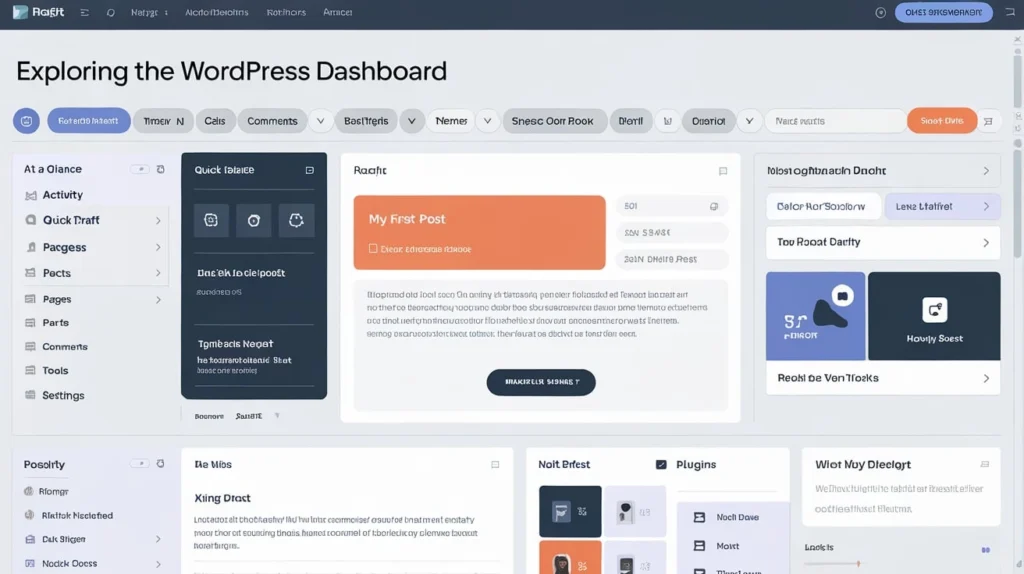
When you log in, you’ll see several key areas:
SectionDescriptionDashboardOverview of your website’s status.PostsAdd or manage blog posts.PagesCreate static pages like “About” or “Contact.”AppearanceCustomize your theme and menus.PluginsAdd extra functionality (SEO tools, forms, security, etc.).SettingsAdjust general configurations like site title and URLs.
Take a few minutes to explore the dashboard — it’s user-friendly and intuitive once you get used to it.
Choosing and Installing a WordPress Theme
Your theme controls how your website looks — colors, fonts, layouts, and design.
How to Choose a Theme:
- Make sure it’s responsive (mobile-friendly).
- Choose one that’s SEO-optimized.
- Look for customization options (via the WordPress Customizer).
- Check reviews and update frequency.
Popular Free WordPress Themes (2025):
- Astra – Lightweight and customizable.
- GeneratePress – Fast and performance-focused.
- OceanWP – Great for beginners and small businesses.
- Neve – Modern, responsive, and multipurpose.
- Kadence – Ideal for bloggers and WooCommerce users.
To install a theme:
- Go to Appearance → Themes → Add New.
- Search your chosen theme.
- Click Install → Activate.
Customizing Your WordPress Site
Once your theme is active, it’s time to make it yours.
Go to: Appearance → Customize
Here you can modify:
- Site Title & Tagline
- Colors & Fonts
- Header & Footer Layouts
- Homepage Settings
- Widgets & Menus
You can preview every change live before saving.
Installing Essential WordPress Plugins
Plugins add new features to your website — like SEO tools, contact forms, or backups.
Must-Have WordPress Plugins for 2025
PluginPurposeDescriptionYoast SEOSEOHelps optimize pages for search engines.WPFormsContact FormsDrag-and-drop form builder.UpdraftPlusBackupAutomatically backs up your website.Wordfence SecuritySecurityProtects against malware and hackers.LiteSpeed Cache / WP RocketSpeedBoosts site speed and performance.ElementorPage BuilderBuild custom pages visually.
To install a plugin:
- Go to Plugins → Add New.
- Search the plugin name.
- Click Install → Activate.
Creating Your First Pages and Posts
Pages (Static)
These are for content that doesn’t change often — like:
- Home
- About
- Services
- Contact
Posts (Dynamic)
Used for blog content. Each post can have:
- Title
- Categories
- Tags
- Featured image
Tip: Use headings (H2, H3), bullet points, and visuals for better readability.
Setting Up Navigation Menus
Menus help visitors find content easily.
Steps:
- Go to Appearance → Menus.
- Create a new menu and name it “Main Menu.”
- Add pages (Home, Blog, Contact).
- Set display location (Header or Footer).
- Save Menu.
Optimizing Your WordPress Site for SEO (Search Engine Optimization)
SEO is how people find your website on Google.
WordPress SEO Tips for 2025:
- Install Yoast SEO or Rank Math.
- Use focus keywords naturally.
- Optimize your title and meta descriptions.
- Add alt text to all images.
- Ensure fast page speed (use caching plugins).
- Create internal links between related posts.
- Secure your site with SSL (HTTPS).
Pro Tip: Use Google Search Console and Analytics to track performance.
Adding eCommerce with WooCommerce
If you want to sell products online, WooCommerce is your best friend.
Features:
- Product pages with images and descriptions.
- Shopping cart and checkout system.
- Payment gateway integration (PayPal, Stripe, etc.).
- Inventory and order management.
To install:
- Go to Plugins → Add New.
- Search “WooCommerce.”
- Install → Activate → Follow setup wizard.
WooCommerce turns your WordPress site into a full online store — perfect for 2025’s booming eCommerce market.
Enhancing Site Performance
Speed matters — both for users and SEO rankings.
Tips to Speed Up Your WordPress Site:
- Use a lightweight theme (like Astra or GeneratePress).
- Install a caching plugin (LiteSpeed, WP Rocket).
- Compress images with Smush or ShortPixel.
- Use a Content Delivery Network (CDN) like Cloudflare.
- Keep plugins and WordPress updated.
Maintaining Your WordPress Site
Regular maintenance ensures your site stays secure and fast.
Weekly Tasks:
- Check for updates (WordPress core, themes, plugins).
- Backup your site.
- Review security logs.
- Delete spam comments and unused plugins.
Monthly Tasks:
- Test loading speed.
- Review analytics and traffic sources.
- Update old blog posts for relevance.
Common WordPress Mistakes Beginners Should Avoid
- Ignoring backups — always schedule them.
- Installing too many plugins — slows down your site.
- Using weak passwords — easy target for hackers.
- Forgetting SEO — means lost traffic opportunities.
- Not updating WordPress — leaves you vulnerable.
Internal Linking Suggestions
If this article is part of a larger website, you can link internally to:
- “Best SEO Plugins for WordPress 2025”
- “Top WordPress Themes for Businesses”
- “How to Start a Blog That Makes Money”
This improves both user experience and Google ranking.
FAQs
Is WordPress free to use in 2025? Yes, WordPress software itself is 100% free. You only pay for hosting and your domain name.
Do I need coding skills to use WordPress? No! WordPress is designed for non-technical users. With drag-and-drop builders like Elementor, you can create any layout without touching code.
Which is better in 2025 – WordPress.com or WordPress.org? For full control, customization, and monetization, WordPress.org is the best choice in 2025.
How long does it take to build a WordPress website? With the right theme and content ready, you can build a complete WordPress site in 1 to 2 days.
Is WordPress safe? Yes, WordPress is secure — but only if you keep plugins updated, use strong passwords, and install a security plugin like Wordfence.
Conclusion
Building your first website can seem intimidating, but with this WordPress Beginners Guide 2025, you now have everything you need to launch confidently. From installation to optimization, WordPress gives you unmatched power, flexibility, and control over your online presence.
Whether you’re starting a blog, a portfolio, or an online business, WordPress makes it simple, scalable, and future-proof. So don’t wait — take your first step today and bring your website vision to life with WordPress.