
There’s nothing quite as unnerving for a computer user as seeing the dreaded blue screen error on Windows 10 — that sudden, full‑screen message that your system “ran into a problem and needs to restart.”
If you’re reading this, you’re probably asking: How do I fix blue screen error Windows 10 (2025 edition)? In this article you’ll find a comprehensive, up‑to‑date guide to identifying, diagnosing and resolving blue screen errors on Windows 10 — plus ways to prevent them in the future. Whether you’re a casual user or a tech‑savvy enthusiast, this article is designed to walk you through the steps in a clear, structured way. Let’s dive in.
What is a Blue Screen Error on Windows 10?
A so‑called Blue Screen of Death (BSOD) is a critical error screen that appears when Windows encounters an issue it cannot safely recover from. HP+2Wikipedia+2
Here are the key points:
- The system halts to prevent potential data loss or hardware damage. Wikipedia+1
- You’ll typically see a stop code (for example 0x0000001E, PAGE_FAULT_IN_NONPAGED_AREA, etc.) and sometimes the name of a driver or file that caused the crash. Wikipedia+1
- It can be caused by hardware issues, driver problems, corrupted system files, software conflicts, or malware. HP+1
In short: it’s a serious warning sign — but not always an irrecoverable one.
Common Causes of Blue Screen Error Windows 10
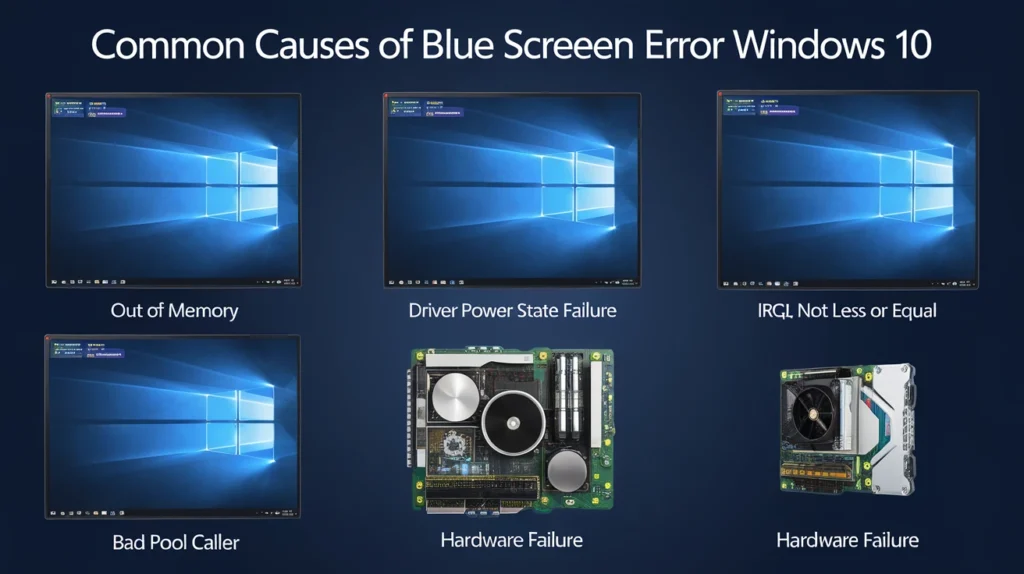
Understanding why blue screens occur is half the battle. Once you know what’s most likely to trigger them, you can more easily apply the right fix. Here are the top causes:
Primary Causes
CauseDescriptionFaulty or failing hardwareRAM errors, failing hard drives/SSDs, overheating components. HP+1Outdated, corrupted or incompatible driversA driver that misbehaves in kernel mode can crash the OS. Dell+1Software conflicts or corrupted system filesRecently installed programs, Windows updates gone wrong, OS corruption. HP+1Malware or external devices causing issuesMalware can tamper with system files; external devices may have bad drivers. Avast+1
Minor but important causes
- Insufficient free disk space for paging/swap files. Microsoft Support
- BIOS or firmware issues (especially in older boards). Dell+1
- System maintenance neglected (e.g., updates not applied).
- Sudden power loss or unstable power supply.
Step‑by‑Step Guide Fixing Blue Screen Error Windows 10 2025
Below is a structured approach you can follow to diagnose and resolve a blue screen on Windows 10. Work from the top down — the faster solutions often fix many cases; if not, proceed to the deeper ones.
Note the Stop Code & Context
When the blue screen appears, take note (or photograph) of:
- The stop code (e.g., 0x0000003B, IRQL_NOT_LESS_OR_EQUAL)
- Any driver or module name listed
- What you were doing when the crash occurred (installing software, gaming, updating driver, etc.)
- Recent hardware changes (new stick of RAM, new graphics card, external device)
This information will guide the rest of the troubleshooting.
Boot into Safe Mode
Safe Mode loads only essential drivers and services, reducing interference. Many blue screen errors can be tested in this environment. AVG.com+1
How to enter Safe Mode in Windows 10:
- From a normal boot: Press Windows + R → type msconfig → Enter → Boot tab → Check Safe boot (Minimal) → Restart.
- If the system won’t boot normally: Force shutdown during startup (e.g., hold power button) twice → On third boot Windows should bring up Recovery options → Troubleshoot → Advanced options → Startup Settings → Restart → Press F5 (Safe Mode with Networking).
Once in Safe Mode, you can start your deeper troubleshooting.
Check for Recent Changes or Installations
If the blue screen started happening after one of the following, that’s a strong clue:
- Installing a new driver (graphics, chipset, network, etc)
- Installing a new piece of hardware (RAM, graphics card, external device)
- Installing a new program or update
- Changing BIOS/Firmware settings
If you identify a recent change, consider undoing it: uninstall the program, remove the hardware, roll back the driver. AVG.com+1
Update Windows & Drivers
Often the fix is simply to apply the latest patches.
- Open Settings → Update & Security → Windows Update → Check for updates. Microsoft Support
- Open Device Manager → Check for devices with yellow exclamation marks → Right‑click → Update driver.
- Visit your PC or motherboard manufacturer’s website for the latest chipset, graphics, and BIOS/firmware updates. Dell
Run System File Integrity Checks
If system files are corrupted, you’ll often get unstable behaviour including blue screens. Use built‑in tools:
SFC (System File Checker)
- Open Command Prompt as administrator.
- Run: sfc /scannow
- Wait until it completes and follow any prompts.
DISM (Deployment Image Servicing and Management) Useful if SFC reports unfixable issues. Run:
DISM /Online /Cleanup‑Image /RestoreHealth
This will attempt to repair the Windows image. Once done, run SFC again. Windows Central
Check Hardware Health
If drivers and system files appear fine, hardware could be the culprit.
RAM:
- Run Windows Memory Diagnostic tool (type Windows Memory Diagnostic in Start) → Restart and test. Norton
- Look for “Memory_Management” stop codes particularly pointing to RAM issues.
Hard Drive/SSD:
- Open Command Prompt as admin → chkdsk C: /f /r (C: is your system drive) → Allow scan at next reboot.
- For SSDs: Use manufacturer’s utility to check health/firmware.
Overheating / PSU issues / External device:
- Ensure the machine is well‑ventilated and fans/vents are clean.
- Disconnect non‑essential external devices (USB drives, external peripherals) to rule out bad device/driver. Norton
Check for Malware
Malware might tamper with system files or drivers and indirectly cause blue screens.
- Run a full system scan using a reliable anti‑malware tool. HP+1
- Consider booting into Safe Mode and running a dedicated offline scan.
Use System Restore or Reset If Required
If none of the above resolves the issue:
- Use System Restore (if enabled) to roll the system back to an earlier point before the issue began.
- As a last resort, you can Reset this PC (Settings → Update & Security → Recovery → Reset this PC) or reinstall Windows 10. Make sure backups are created before doing so.
Error Codes & What They Mean
When you encounter a blue screen, the stop code is your best clue. Here are some common ones and their usual causes:
Stop CodeMeaning & Common CausePAGE_FAULT_IN_NONPAGED_AREATypically RAM problem, bad driver or corrupted page file.IRQL_NOT_LESS_OR_EQUALDriver code tried to access invalid memory – often faulty or misbehaving driver.MEMORY_MANAGEMENTError in memory system, usually RAM or virtual memory issues.INACCESSIBLE_BOOT_DEVICEWindows lost access to the system partition – could be storage driver or BIOS/UEFI change. Dell
When troubleshooting, always search for the exact stop code (and any driver name listed) — you’ll often find community posts and vendor‑specific solutions.
Avoiding Blue Screen Errors in the Future
Once you’ve fixed the issue, it’s smart to take steps so it doesn’t happen again. Here are some best practices:
- Keep Windows up to date (security patches, drivers).
- Use stable, manufacturer‑recommended drivers (avoid beta drivers unless necessary).
- Perform regular hardware maintenance: clean dust, check fans, ensure ventilation.
- Have at least 10–15% free disk space on your system drive — Windows sometimes requires room for page/swap files. Microsoft Support
- Backup your system regularly (so recovery is easier if something goes wrong).
- Avoid installing suspicious software or peripherals from unknown sources.
- Periodically check drive health and memory health (using tools built into Windows or third‑party utilities).
- If you use overclocking or custom firmware, monitor stability carefully.
When to Seek Professional Help
If you’ve gone through most of the above and still face persistent blue screen errors, consider the following:
- The issue is clearly hardware‑related (e.g., failing RAM, SSD or motherboard) and you’re not comfortable replacing components.
- The machine is under warranty or you’re using enterprise hardware — consulting the manufacturer or a professional technician may make the most sense.
- You suspect driver or BIOS/firmware issues but cannot resolve them yourself — a tech support professional can analyze dump files and identify deeper root causes.
- You’re hitting multiple different stop codes in quick succession, suggesting a deeper systemic issue.
Internal Linking Suggestions
If this article is part of a larger site or blog, you might want to link to:
- An article about how to backup Windows 10 system
- A guide on how to update Windows 10 drivers safely
- A tutorial on how to use Safe Mode in Windows 10
- A post on choosing hardware (RAM/SSD) for Windows 10 stability
These internal links help improve SEO, user engagement and site navigation.
FAQs
1. Why does my Windows 10 PC still blue‑screen after updates? If a driver is incompatible or the update introduced conflicts, simply updating isn’t enough. You may need to roll back the update/driver, check hardware health, or perform a clean install of the driver.
2. Can a blue screen error damage my PC? The blue screen itself is a protective shutdown. It doesn’t damage hardware, but the underlying fault (e.g., overheating, bad RAM) could. Dell
3. How do I read the minidump file after a BSOD? Windows saves crash dump files in %SystemRoot%\Minidump. You can use tools like WinDbg or BlueScreenView to open them and check which driver or module caused the crash.
4. What if the system won’t boot at all — just shows blue screen and restarts? Try booting into Safe Mode or into the Windows Recovery Environment (e.g., via installation media). From there you can run SFC/DISM, restore drivers, remove hardware, or reset Windows.
5. Does reinstalling Windows always fix BSODs? Not always. It may fix software‑related issues (corrupted system files, driver conflicts), but if the blue screen is caused by hardware (RAM, SSD/HD, motherboard), it may persist even after reinstall. Always diagnose hardware too.
Conclusion
Encountering a blue screen error on Windows 10 can be frustrating and alarming, but it doesn’t have to be a dead end. By following the structured approach above — noting the stop code, booting into Safe Mode, updating drivers and Windows, checking system files, verifying hardware and scanning for malware — you can usually identify and fix the root cause. Better still, adopting preventive habits will reduce the likelihood of seeing the dreaded blue screen again.
Take action now: back up your data, run the checks laid out above, and you can restore your machine to stability and peace of mind. You’ve got this — let your PC run smoothly without fear of the next crash.