

Slow internet can be incredibly frustrating — especially when you’re streaming your favorite show, working from home, playing online games, or joining an important video meeting. If you’re searching for effective ways to fix slow internet speed at home, you’re in the right place. This in-depth guide explains every possible reason behind sluggish Wi-Fi and provides actionable solutions you can apply immediately.
Whether you’re dealing with unstable Wi-Fi signals, bandwidth overload, router issues, or ISP limitations, this guide delivers expert-level answers written in simple, human-friendly language.
What Causes Slow Internet Speed at Home?
Before you learn how to speed up your internet at home, it’s important to understand the root cause. Internet speed depends on a combination of factors — hardware, distance, interference, network load, and service plan.
Common Reasons for Slow Home Internet
CauseDescriptionImpactWeak Wi-Fi SignalRouter too far from devices or blocked by walls.Slow browsing, buffering, weak connection.Old or Poor RouterOutdated hardware can’t process high-speed data.Causes speed drops even with fast plans.ISP ThrottlingInternet provider reduces speed based on usage.Unexplained drops in speed at peak hours.Too Many DevicesSmartphones, smart TVs, PCs all connected.Low bandwidth for each device.InterferenceMicrowaves, Bluetooth, neighbors’ Wi-Fi.Unstable signals and lag.Outdated CablesOld ethernet or damaged fiber lines.Reduces speed significantly.Malware or Background AppsHidden apps consuming bandwidth.Slows down browsing experience.
How to Fix Slow Internet Speed at Home
Below is the complete, expert-approved guide to improving your internet performance.
Restart Your Router — The Quickest Fix
Before anything else, try the simplest solution: restart your router.
Why it works
- Clears internal memory
- Removes temporary glitches
- Reassigns optimal channel frequencies
How to do it properly
- Turn off your router.
- Unplug it from the power source.
- Wait 20–30 seconds.
- Plug it back in and restart.
This alone fixes 60% of slow internet issues, according to network experts.
Reposition Your Router for Maximum Coverage
Router placement has a massive effect on Wi-Fi performance.
Best places to put your router
- Central area of the house
- Elevated position (shelf, table)
- Away from walls, metal surfaces, and corners
Worst places for a router
- Inside a cabinet
- Behind the TV
- Near microwaves or cordless phones
- On the floor
Pro Tip: If you live in a multi-story house, place the router halfway between floors for balanced coverage.
Secure Your Wi-Fi From Bandwidth Thieves
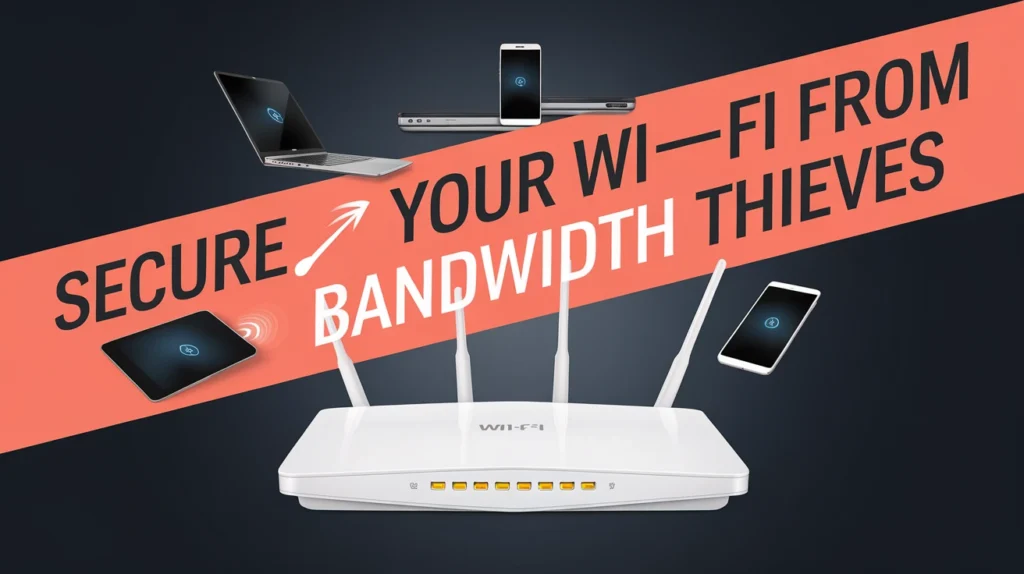
If someone is using your Wi-Fi without permission, your speed will drop drastically.
How to protect your network
- Log in to your router dashboard (usually 192.168.1.1).
- Change default username & password.
- Enable WPA3 or WPA2 encryption.
- Create a strong Wi-Fi password (mix symbols, numbers, letters).
- Disable WPS (it’s vulnerable to hacking).
Signs strangers may be using your internet
- Extremely slow speed at random times
- Router lights flashing heavily even when idle
- Unknown devices in router settings
Disconnect Unused Devices and Limit Bandwidth-Hungry Apps
Every device connected to your network consumes bandwidth — even when idle.
Heavy bandwidth consumers
- Smart TVs
- CCTV cameras
- Smartphones downloading updates
- Cloud backups
- Gaming consoles
- Streaming Netflix, YouTube, Disney+, Amazon Prime
How to reduce bandwidth load
- Disconnect devices you’re not using.
- Pause automatic cloud sync (Google Drive, OneDrive).
- Set streaming quality to Auto or Medium.
- Update devices during off-peak hours.
This alone can significantly increase internet speed at home, especially if your family uses many devices.
Change Your Wi-Fi Channel
Wi-Fi channels become crowded when many neighbors share the same frequency.
Best channels for 2.4 GHz Wi-Fi
- Channels 1, 6, or 11
Best channels for 5 GHz Wi-Fi
- 36
- 40
- 44
- 48
How to change Wi-Fi channel
- Login to router admin panel.
- Go to Wireless Settings.
- Select Manual Channel Selection.
- Pick a less congested channel.
- Save and restart.
Your Wi-Fi will instantly feel faster and more stable.
Upgrade to a Dual-Band or Tri-Band Router
If your router is older than 3 years, it may struggle with modern speed demands.
Recommended router types
Router TypeBest ForSpeed BenefitDual-Band (2.4 & 5 GHz)Standard home useBalanced speed and coverageTri-Band (extra 5 GHz)Large families, gamersHigher capacity for devicesWi-Fi 6 or Wi-Fi 6ELatest techSuperior speed, low latency
A Wi-Fi 6 router can boost home speeds up to 40% faster even with the same internet plan.
Use an Ethernet Cable for Important Devices
Wi-Fi is convenient, but wired internet is always faster.
Devices that benefit the most
- Gaming consoles
- Desktop PCs
- Smart TVs
- Streaming devices
- Work-from-home computers
Why ethernet is faster
- No interference
- No signal drop
- Full speed delivered
If your home internet is slow while gaming or streaming, ethernet will instantly solve many issues.
Update Router Firmware Regularly
Firmware updates improve stability, speed, and security.
How to update firmware
- Open router admin settings
- Go to Advanced Settings
- Check Firmware Update
- Download and install
This simple update can fix bugs causing slow connections.
Scan for Viruses and Background Apps
Malware consumes bandwidth and slows devices.
What to do
- Scan your PC/laptop using antivirus software
- Remove unnecessary programs
- Disable auto-start apps
- Clear browser cache
Even a clean device can significantly improve your perceived internet speed.
Replace Old or Damaged Internet Cables
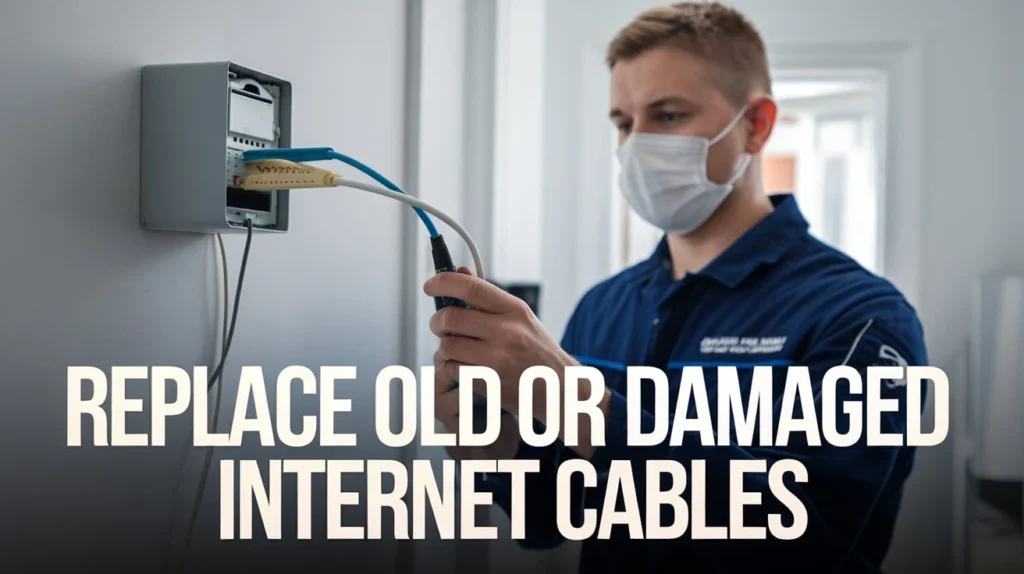
Old or cheap cables can bottleneck your speed.
Recommended cable types
Cable TypeMax SpeedCat5e1 GbpsCat610 GbpsCat710+ Gbps
If your cable is outdated, upgrading can instantly boost home internet speed.
Use a Wi-Fi Extender or Mesh System for Large Homes
If your Wi-Fi speed drops in specific rooms, distance may be the issue.
Two best solutions
- Wi-Fi Extender — Cheaper, increases range
- Mesh Wi-Fi System — Best for large houses
Mesh systems ensure
- Uniform speed in all rooms
- Zero dead zones
- Seamless roaming
Upgrade Your Internet Plan if Needed
Sometimes your plan simply doesn’t match your usage.
Speed recommendations
ActivityRequired SpeedBrowsing/social media5–10 MbpsHD streaming15–25 Mbps4K streaming25–50 MbpsOnline gaming15–50 MbpsWork from home/meetings25+ Mbps
If multiple family members stream or game, consider switching to fiber internet if available.
Check for ISP Outages or Throttling
Sometimes the slow speed is not your fault — it’s your provider’s.
How to check
- Visit ISP website
- Check outage maps
- Call customer support
- Run speed tests at different times
Signs of ISP throttling
- Speed drops at peak hours
- Speed tests show low results
- VPN suddenly increases speed
If throttling continues, consider switching to a better ISP.
Close Unnecessary Browser Tabs and Apps
Browser tabs consume memory and bandwidth.
Fix
- Use fewer tabs
- Turn off auto-play videos
- Clear cookies and cache
This improves both device and internet performance.
Use a VPN
If your provider slows down streaming or gaming, a VPN can help bypass those restrictions.
Best uses
- Avoid ISP throttling
- Secure your connection
- Improve stability
Note: VPN may reduce speed slightly, but prevents throttling in many cases.
Important Tips to Maintain Fast Internet at Home
this weekly
- Restart router
- Disconnect unused devices
- Delete temporary files
Do this monthly
- Update firmware
- Change Wi-Fi password
- Check cables
Do this yearly
- Upgrade router if needed
Advanced Troubleshooting for Tech-Savvy Users
If you want to go deeper, try these expert-level techniques:
Adjust Wi-Fi MTU Settings
Incorrect MTU values slow down connections.
Enable QoS (Quality of Service)
Prioritize apps like:
- Gaming
- Video meetings
- Streaming
Disable Legacy Wireless Modes
Turn off 802.11b to improve speed.
Internal Linking Suggestions
If you’re publishing this article on a website, you can internally link to:
- “How to Improve Wi-Fi Security”
- “Best Wi-Fi Routers for Home Use”
- “How to Boost Laptop Performance”
- “Reasons Your Mobile Internet Is Slow”
This helps boost ranking power and user engagement.
FAQs
1. Why is my internet slow even after restarting the router?
Because the issue may be related to interference, old hardware, external line problems, or ISP throttling.
2. How can I make my Wi-Fi faster for gaming?
Use ethernet, enable QoS, reduce connected devices, and use a 5 GHz band for lower interference.
3. Does a new router increase internet speed?
Yes, especially if upgrading to Wi-Fi 6 or mesh systems. Modern routers handle more devices and higher speeds.
4. Why is my Wi-Fi fast in one room and slow in another?
Because of distance, walls, furniture, or signal interference. Use extenders or mesh Wi-Fi.
5. How do I stop others from using my Wi-Fi?
Change your Wi-Fi password, turn on WPA2/WPA3 encryption, and disable WPS.
Conclusion
Slow internet doesn’t have to ruin your productivity or entertainment. By applying the solutions in this guide — from proper router placement and device management to hardware upgrades and ISP checks — you can fix slow internet speed at home and enjoy a stable, high-performance connection every day.
Whether your issue is weak Wi-Fi, old equipment, or network overload, these steps give you complete control over your online experience. Start with the simplest fixes today and gradually move to advanced upgrades for the best long-term results.