
In an era where online privacy and cybersecurity have become top priorities, learning how to set up a VPN on Windows, Mac, and mobile devices is no longer optional—it’s essential.
Whether you’re browsing public Wi-Fi, accessing geo-restricted content, or safeguarding sensitive information, a VPN (Virtual Private Network) acts as a shield between you and potential cyber threats. This comprehensive guide will walk you through the entire process of VPN setup across various platforms, ensuring a secure and seamless online experience.
What is a VPN and Why You Need One
A VPN (Virtual Private Network) is a technology that encrypts your internet traffic and routes it through a secure server, masking your IP address and location. This ensures your online activities remain private, even on unsecured networks.
Key Benefits of Using a VPN:
BenefitDescriptionOnline PrivacyMasks your IP address to keep browsing anonymous.Security on Public Wi-FiProtects your data from hackers on unsecured networks.Access to Geo-Restricted ContentAllows streaming platforms and websites from other regions.Prevent Bandwidth ThrottlingISPs cannot slow down your internet based on usage.Safe Remote WorkEncrypts communications for remote teams and employees.
VPN Setup on Windows
Windows is the most widely used desktop operating system, and VPN setup on Windows can be done in multiple ways: using built-in features, third-party applications, or browser-based VPN extensions.
Using Windows Built-In VPN
Windows 10 and 11 offer a built-in VPN client. Here’s how to set it up:
- Open Settings: Press Windows + I.
- Navigate to Network & Internet: Click on VPN.
- Add a VPN Connection: Click Add a VPN connection.
- Enter VPN Details:
- VPN provider: Windows (built-in)
- Connection name: Any preferred name
- Server name or address: Provided by your VPN service
- VPN type: Automatic or select protocol (IKEv2, L2TP, PPTP)
- Sign-in info: Username and password provided by VPN provider
- Connect: Click Save and then Connect.
Tip: For enhanced security, avoid PPTP as it is outdated. Prefer IKEv2 or OpenVPN protocols.
Using Third-Party VPN Software on Windows
Most VPN providers, like NordVPN, ExpressVPN, and Surfshark, offer dedicated Windows apps:
- Download and Install: Visit the official VPN website and install the Windows client.
- Log In: Enter your credentials.
- Select a Server: Choose from various countries or recommended servers.
- Connect: Click Connect, and your Windows PC is now secured.
Common Issues and Troubleshooting
- VPN not connecting: Check firewall settings or switch to another server.
- Slow speed: Use nearby servers or change VPN protocols.
- App crashes: Ensure Windows is updated to the latest version.
Why You Need a VPN on Windows, Mac, and Mobile Devices

Many users underestimate how much data their devices send across the internet. Every time you browse, stream, or log into an app, your device shares information that can be tracked or intercepted. A VPN protects this data by encrypting your connection and hiding your IP address.
In addition, public Wi-Fi networks at airports, cafés, and hotels often lack proper security. Hackers can easily launch attacks on unsecured networks. Using a VPN on Windows, Mac, and mobile devices ensures your traffic is safe, even on risky connections. This extra layer of privacy gives you freedom and confidence while browsing.
Choosing the Right VPN Service for Windows, Mac, and Mobile
Selecting the right VPN service is essential for performance and security. A good VPN should offer strong encryption, a no-logs policy, reliable speeds, and a user-friendly interface. In addition, it should support all major platforms so you can use one account across multiple devices.
Look for features like kill switch, split tunneling, and multi-device support. Servers in multiple countries also help improve streaming access and reduce lag. Before subscribing, compare pricing plans and customer support options. A trustworthy VPN provider delivers consistent protection without slowing down your internet.
Step-by-Step Guide Installing a VPN on Windows
Setting up a VPN on Windows is straightforward, even for beginners. Start by downloading the VPN client from the provider’s official website. After installation, log in with your account details and choose a server location. The app will encrypt your connection instantly.
In addition, Windows includes a built-in VPN configuration option. You can manually enter server information under Settings → Network & Internet → VPN. This method works well if your provider offers manual setup files. Always double-check your login credentials and ensure the VPN is actively running before browsing.
Step-by-Step Guide Installing a VPN on Mac Devices
Mac users benefit from a similar installation process. Download the VPN app from the provider’s website or the macOS App Store. Once installed, open the app, sign in, and select a server. The VPN will secure all outgoing and incoming traffic on your Mac.
MacOS also supports manual VPN configuration using IKEv2 or L2TP protocols. Go to System Settings → Network → VPN and add a new configuration. This approach is useful for advanced users or business networks. Remember to enable VPN auto-connect if you want continuous protection while using your Mac.
How to Set Up a VPN on Android Smartphones
Android devices offer flexible VPN setup options. The easiest method is installing the VPN app from the Google Play Store. Log in, pick a server, and activate the connection with one tap. Most Android VPN apps also include features like split tunneling and auto-connect on Wi-Fi.
Alternatively, you can configure a VPN manually by opening Settings → Network & Internet → VPN and entering the server details provided by your VPN provider. This is useful if you’re connecting to a workplace VPN. Always ensure that your device’s operating system is updated to avoid compatibility issues.
How to Set Up a VPN on iPhone and iPad
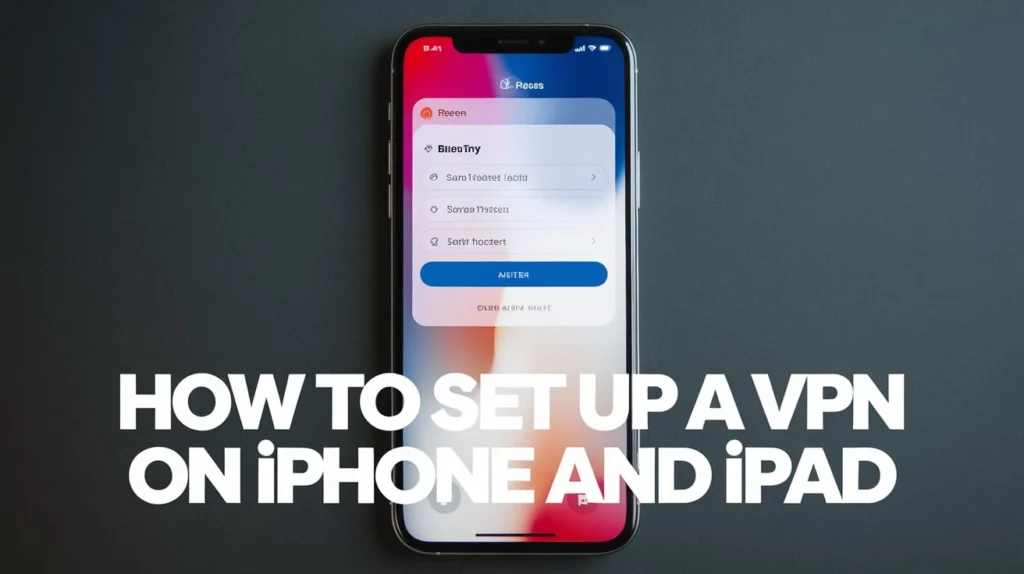
Apple devices make VPN setup simple and secure. Download your VPN provider’s app from the App Store and sign in with your credentials. Choose your preferred server and tap “Connect.” The VPN icon will appear in the status bar once the connection is active.
For manual configuration, go to Settings → General → VPN & Device Management and add a new VPN profile. Select IKEv2 or L2TP, depending on your provider’s recommendations. In addition, you can enable “Connect On Demand” to ensure you stay protected whenever your device detects unsecured networks.
Troubleshooting Common VPN Issues on Windows, Mac, and Mobile
Sometimes VPNs encounter issues such as slow speeds, connection drops, or failure to connect. The first step is checking your internet connection. Restarting your device or switching to another VPN server often solves the problem.
If the issue persists, verify that your VPN app is updated to the latest version. Firewalls and antivirus programs may also block VPN traffic. Adjust your settings or add your VPN to the exception list. For mobile users, switching between Wi-Fi and mobile data can help stabilize the connection. When all else fails, contact your VPN provider’s support team for expert guidance.
VPN Setup on Mac
Mac users benefit from built-in VPN configurations and third-party apps. Apple devices prioritize security, making VPNs even more effective.
Using macOS Built-In VPN Client
- Open System Preferences: Click Network.
- Add VPN: Click the + icon at the bottom left and select VPN.
- Choose VPN Type: Options include IKEv2, L2TP over IPSec, and Cisco IPSec.
- Configure Settings:
- Enter server address, account name, and authentication settings.
- Connect: Click Apply then Connect.
Using VPN Apps on Mac
Top VPN providers have dedicated Mac applications:
- Download the VPN App: From the official provider website.
- Install and Open: Follow on-screen instructions.
- Log In and Select Server: Choose your preferred location.
- Connect: Your Mac is now encrypted and private.
Troubleshooting Common Mac VPN Issues
- VPN keeps disconnecting: Change servers or switch protocols.
- Slow internet speed: Check for background apps consuming bandwidth.
- Authentication errors: Verify username and password with your VPN provider.
VPN Setup on Mobile Devices
Mobile VPNs are crucial for staying protected while using cellular data or public Wi-Fi. Both iOS and Android support VPNs natively and through apps.
VPN Setup on Android
- Using Built-In VPN:
- Open Settings → Network & Internet → VPN → Add VPN.
- Enter VPN name, server, type, username, and password.
- Save and connect.
- Using VPN Apps:
- Download from Google Play Store (e.g., NordVPN, ExpressVPN).
- Open app → log in → choose a server → connect.
VPN Setup on iOS
- Using iOS Settings:
- Go to Settings → General → VPN → Add VPN Configuration.
- Choose IKEv2, IPSec, or L2TP, and fill in server and account details.
- Tap Done, then toggle Connect.
- Using VPN Apps:
- Install from App Store.
- Log in → select server → connect.
Choosing the Right VPN for Your Devices
Not all VPNs are created equal. Selecting a reliable VPN is crucial for security, speed, and functionality.
Key Factors to Consider:
FeatureImportanceSecurity ProtocolsOpenVPN, IKEv2, WireGuard are preferred.SpeedOpt for high-speed servers for streaming and gaming.Server LocationsMore servers = better access to geo-blocked content.CompatibilityEnsure support for Windows, Mac, Android, and iOS.Logging PolicyChoose VPNs with a strict no-logs policy.Customer Support24/7 support helps resolve technical issues.
Recommended VPNs:
- ExpressVPN – Best overall speed and security.
- NordVPN – Excellent privacy and multiple servers.
- Surfshark – Affordable with unlimited device connections.
Step-by-Step Guide to Secure VPN Use
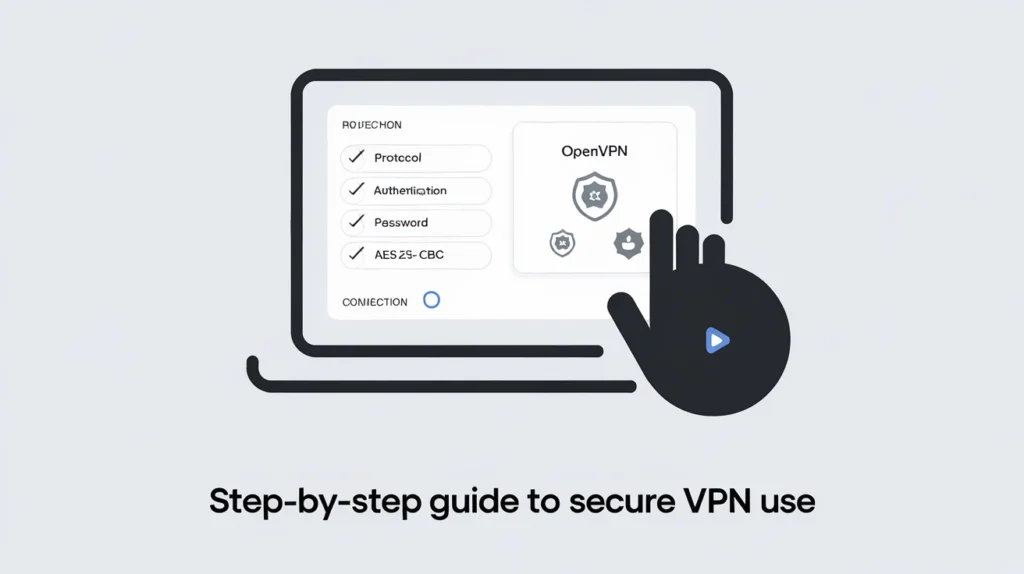
Using a VPN effectively requires more than just installation. Here are tips for maintaining optimal security:
- Enable Kill Switch: Automatically disconnects internet if VPN fails.
- Use Multi-Factor Authentication: Adds an extra security layer.
- Update VPN Apps Regularly: Ensures latest security patches.
- Avoid Free VPNs: They often log data or show ads.
- Select the Right Server: For speed and bypassing geo-restrictions.
Advantages of VPN for Multiple Devices
Having a VPN across Windows, Mac, and mobile devices provides seamless protection:
- Consistent Privacy: All your devices are equally protected.
- Secure Remote Work: Encrypts data whether on desktop or mobile.
- Access Anywhere: Stream content or use apps from any region.
- Unified Management: One account covers multiple devices with modern VPNs.
FAQs
Can I use one VPN subscription on multiple devices? Yes, most premium VPNs allow multiple simultaneous connections on Windows, Mac, Android, and iOS.
Which VPN protocol is best for security and speed? WireGuard is recommended for speed, while OpenVPN offers robust security. IKEv2 is stable for mobile devices.
Is it legal to use a VPN? Yes, VPNs are legal in most countries. However, using them for illegal activities remains unlawful.
Will VPN slow down my internet? Slightly, depending on server distance and encryption level. Choosing nearby servers minimizes speed loss.
Can VPNs bypass streaming geo-blocks? Yes, premium VPNs like ExpressVPN and NordVPN can bypass restrictions on platforms like Netflix, Hulu, and Disney+.
Conclusion
Setting up a VPN on Windows, Mac, and mobile devices is an essential step toward secure and private internet use. Whether you’re safeguarding sensitive information, accessing geo-restricted content, or browsing public Wi-Fi safely, a VPN provides peace of mind across all platforms. By following the setup instructions outlined in this guide, choosing the right VPN, and adhering to best practices, you can enjoy a fast, secure, and private online experience without compromise.